Table of contents
- How to Create and Optimize Your Google Business Profile for Maximum Visibility
- What Is a Google Business Profile?
- Benefits of Listing Your Business on Google
- Step-by-Step: How to Create Your Google Business Profile (Beginner-Friendly — Extremely Detailed)
- Quick copy-paste templates (useful) -
- Launch checklist (complete this before you publish) –
- Common Mistakes to Avoid –
- How to Manage and Track Performance -
- Why Businesses Choose Experts to Handle Their Google Business Profile -
- Final Thought:
How to Create and Optimize Your Google Business Profile for Maximum Visibility – A Proper Guide for Beginners
Want to Show Up First on Google?
Imagine someone searches for exactly what your business offers. They’re ready to buy, visit, or call — but instead of finding you, they find your competitor.
Why? Because your business isn’t showing up where it matters most: Google Search and Maps.
That’s not just frustrating — it’s lost revenue.
But the good news is that you don’t need a marketing degree or a big budget to fix it.
Now you can resolve the of not being visible by locals in just 20-30 minutes and that too without spending a single penny on it. You can create and optimize your Google Business Profile (GBP) – a free tool that puts your business in front of local customers at the moment they intend to take action.
So, whether you run a local shop, freelance service or have several locations, our step-by-step process will show you how to set up, verify and fully optimize your listing for total exposure – even if you’re starting from scratch.
Let’s get your business seen.
What Is a Google Business Profile?
A Google Business Profile (GBP) previously known as Google My Business is essentially your business’s digital storefront on Google.
It’s what appears when someone searches for your business name or looks for services you offer nearby. For example, if someone searches “best coffee shop near me”, the listings that appear (with photos, hours, reviews, and directions) come from Google Business Profiles.
Your GBP allows you to:
- Share your business name, location and contact details
- Display your hours, photos, products, and services
- Interact with customers via messages and reviews
- Track engagement through Google insights
In simple terms, it is one of the easiest and fastest way to get your business noticed by potential customers in your area.
Benefits of Listing Your Business on Google
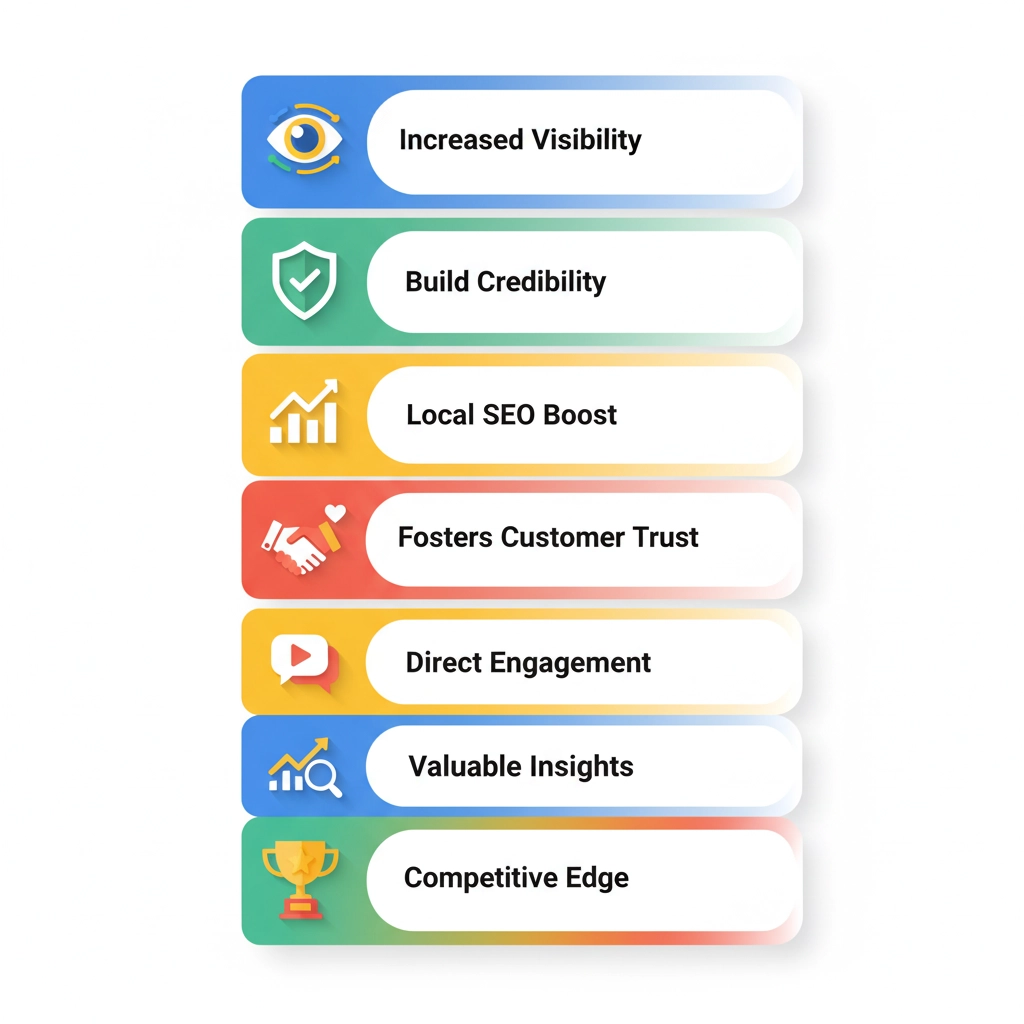
Are you still unsure about setting up your Google Business Profile? Well here are a few advantages that can really make a difference in your overall growth, client interaction & visibility:
1. Increased Visibility Where It Matters Most
An optimized Google Business Profile lets your business show up in local search results & on Google Maps exactly there where your potential customers are looking for what you provide.
2. Builds Trust and Credibility Instantly
3. Boosts Your Local SEO Performance
4. Simplifies Customer Interaction
5. Access to Valuable Insights
6. Builds a Strong Online Reputation
7. Gain a Competitive Advantage
Step-by-Step: How to Create Your Google Business Profile (Beginner-Friendly — Extremely Detailed)
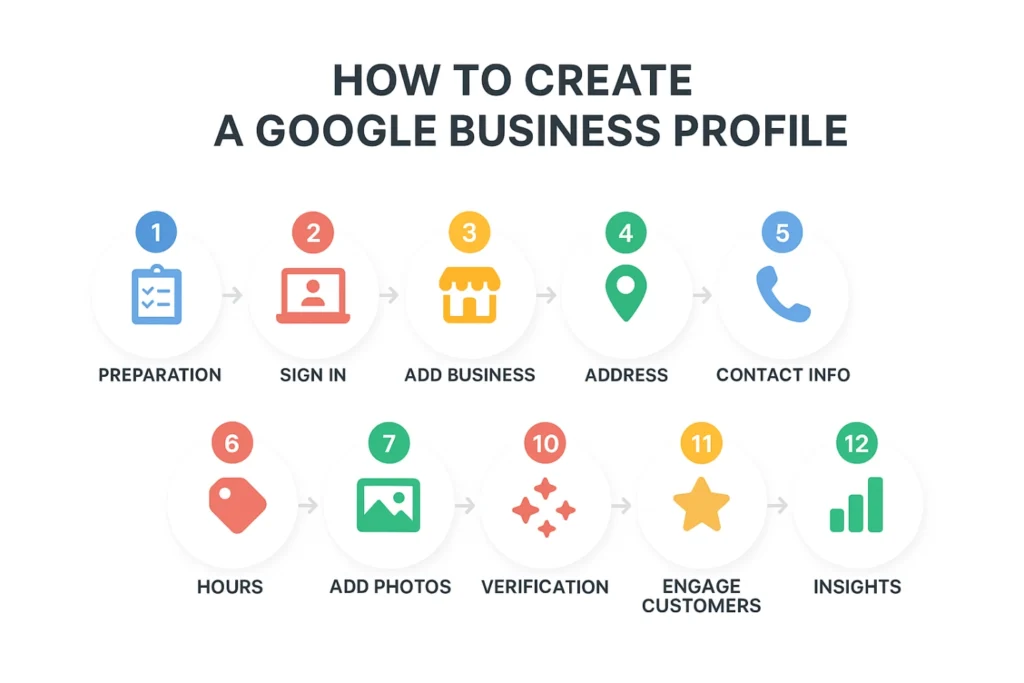
Tip before you start: use a desktop browser for the first setup — it’s easier to see all fields. If you prefer mobile, you can use the Google Business Profile app later to manage updates.
1. Prepare before you create -
- Choose one Google account you’ll use for business ownership (not a personal account you might lose).
- Gather business details: exact business name, full address, phone number, website URL, business hours, and a short list of services/products.
- Prepare 6–12 good photos: exterior, interior, team, product shots, logo. High-resolution JPEG/PNG files are best.
- Write a short business description (see sample template below).
- Have a phone ready and know whether you have mailing access at your business address (for postcard verification).
2. Start the listing -
- Go to google.com (or open the Google Business Profile app).
- Click “Start now” (or “Get started”).
- Sign in with the Google account you’ll use to own the profile.
3. Add core business information -
Follow the interface prompts and enter the information exactly as you want it displayed.
- Business name: Enter your official business name (no keyword stuffing).
Example: Sunny Side Bakery — not Sunny Side Bakery – Best Cakes in Town. - Business category: Start typing and choose the most specific category (e.g., Artisanal Bakery, Veterinary Clinic). You can add secondary services later.
- Location:
- If you want customers to visit you than add full street address.
- If you travel to customers or serve an area: choose “No” when asked about a physical storefront and then add service areas (cities/postcodes).
- Contact details: Add your business phone number (local format) and website. If no website, you can choose the free website Google offers — but a custom domain is better for branding.
- Business hours: Add regular hours and any special hours (holidays, seasonal). You can add special hours later for specific dates.
4. Verify your business (don’t skip this) –
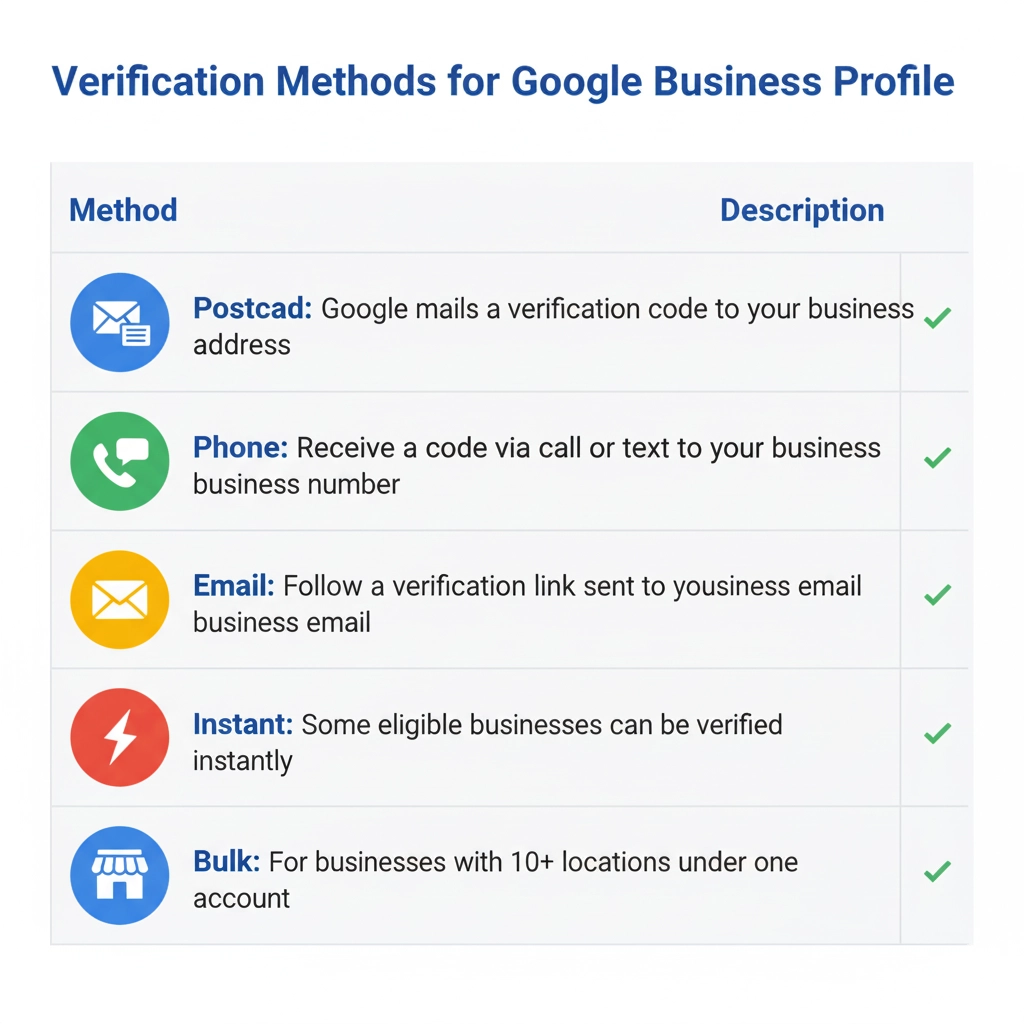
Verification activates your profile on Search & Maps.
Common verification methods:
- Postcard by mail (most common): Google sends a postcard with a 5–6 digit code to your business address. It usually arrives within 5–14 business days depending on region. Don’t edit your address while waiting.
- Phone verification: Some businesses qualify — Google will call or text a verification code.
- Email verification: Rare, but possible if Google has verified your account via G Suite.
- Instant verification: If you already verified your business with Google Search Console, you may get instant verification.
- Bulk verification: For 10+ locations, you can apply for bulk verification through the dashboard.
How to verify with postcard:
- Choose Postcard and click Send.
- Wait for the postcard. When it arrives, sign in to your GBP dashboard, click Verify now, and enter the code exactly.
- If it doesn’t arrive after 14 days, request a new postcard. Don’t request too many — wait at least a week between requests.
Troubleshooting postcard issues:
- Confirm mailing address is correct and accessible to postal delivery.
- Use the full official address formatting Google suggests.
- If postcards repeatedly fail, try phone verification or contact Google Business Profile support.
5. Complete your profile (fill every field) -
Once verified, complete all available sections — a complete profile ranks and converts better.
Must-fill fields
- Business description (150–300 words): succinctly tell what you do, who you serve, and why you’re different.
Template (copy & customize):
[Business Name] offers [primary service/product] for [target customers]. With [X] years of experience, we specialize in [unique selling points — e.g., handmade, same-day service]. Visit us for [key benefits]. Book online or call [phone].
Example:
Sunny Side Bakery offers freshly baked breads, cakes, and pastries for local families and events. With over 10 years of baking experience, we specialize in custom celebration cakes and daily artisan loaves made from locally sourced ingredients. Order online or call to schedule catering.
- Business category & additional categories: Add up to several categories to capture all main services. Primary category influences search ranking most.
- Services / Menu / Products: Add individual services or products with descriptions and prices where relevant. This populates service sections on desktop and mobile.
- Attributes: Select relevant attributes (e.g., “wheelchair accessible”, “women-led”, “outdoor seating”, “accepts credit cards”). These help customers filter and find you.
- Profile & Cover photos: Upload a square logo and a landscape cover image. Add interior, exterior, product & team photos.
Photo suggestions:
- Logo: clear, square crop (high res).
- Cover: a wide image showing your shopfront or hero product.
- Add at least 3–5 high-quality images; more is better.
- Video (optional): Short clips (30–60s) that show your business, products or services.
- Opening date / Highlights: Add opening date and any highlights (e.g., “family-owned since 2015”).
- Services URLs or booking link: If you accept appointments, add your booking link (Google integrates with many scheduling providers).
6. Optimize for local search (technical steps) –
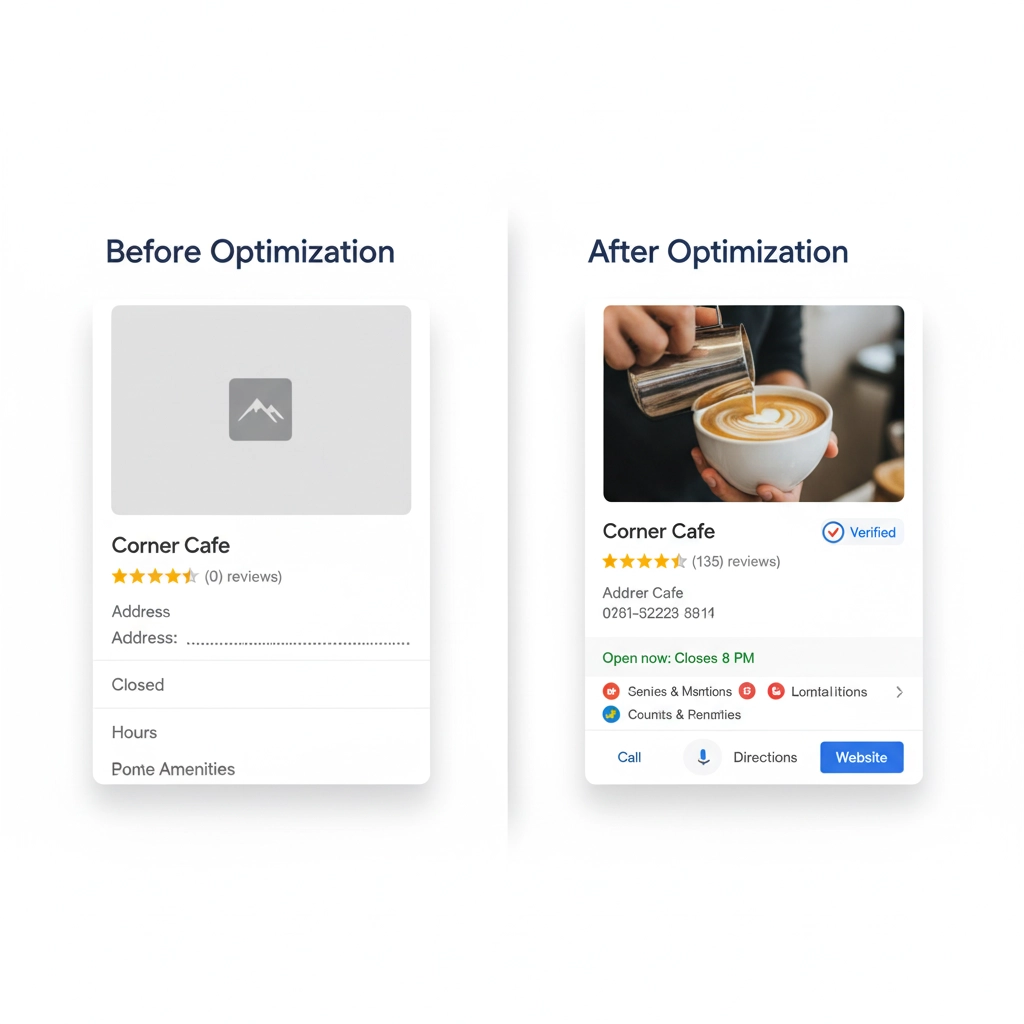
- Use a keyword-rich (but natural) business description. Include main service + location keywords where natural (e.g., “wedding cakes in Mumbai”). Don’t keyword-stuff.
- Set primary category carefully. If you’re a bakery that does catering and classes, primary could be Bakery, secondary Catering & Baking classes.
- Add service and product names exactly as customers would search.
- Use UTM tracking on website links so you can measure traffic from GBP.
Example of UTM:
https://yourwebsite.com/?utm_source=google&utm_medium=profile&utm_campaign=gbp
Pro Tip –
If you’re unsure about how to fully optimize your listing or need help with keyword research, Local SEO Services can help ensure your profile is set up to rank in local searches.
7. Set up messaging, bookings, and Q&A -
- Enable Messaging: Turn on messaging in dashboard or app so customers can text you directly. Monitor frequently — slow replies frustrate customers.
- Bookings / Reservations: Connect to a supported scheduling partner or add your booking link. This enables “Book” button on the profile.
- Manage Questions & Answers: Users can ask questions publicly. Seed common Q&A’s yourself (post the question and answer from your account) so potential customers see accurate info.
8. Publish and Review Your Listing
- Double-check all information for accuracy.
- Click “Publish” and review how your profile looks in Google Search and Maps.
- Once live, test it:
- Search your business name
- Ensure your details display correctly
9. Add and manage reviews -
- Ask customers for reviews via email receipts, checkout, or SMS (don’t incentivize reviews).
- Respond to every review: Use a friendly, professional template like:
- Positive review reply: Thanks [First name]! We’re glad you enjoyed [service/item]. Hope to see you again soon.
- Negative review reply: Hi [Name], we’re sorry to hear about your experience. Please DM/call us at [phone] so we can make this right.
- Positive review reply: Thanks [First name]! We’re glad you enjoyed [service/item]. Hope to see you again soon.
- Flag fake or abusive reviews using the “flag as inappropriate” option in the dashboard.
- Ask customers for reviews via email receipts, checkout, or SMS (don’t incentivize reviews).
10. Maintain your profile (weekly / monthly tasks) -
- Post at least once every 1–2 weeks (offers, events, product launches). Posts expire after ~7 days but keep activity fresh.
- Respond to new reviews within 48–72 hours.
- Update photos every month or after seasonal changes.
- Check Insights monthly to see changes in search queries and customer actions.
11. Advanced items (if you run multiple locations or want more control) -
- Manage users & permissions: Add managers or owners from the dashboard (useful for agencies or team members). Owners have full control; managers have limited control.
- Bulk upload for 10+ locations: Use the bulk upload CSV template in the dashboard to create and verify many locations. Google will verify via bulk verification process.
- Duplicate listings: If you find duplicates, mark the duplicate as “Permanently closed” and request Google to remove it via the dashboard.
12. Common verification & suspension issues — and how to fix them -
- Verification postcard not received: Wait 14 days, then request another. Confirm address accuracy and that mail is received at that location.
- Profile suspended: Common reasons — spammy business name, address mismatch, prohibited content. Check email from Google for reason. Fix the issue (correct name/address, remove policy violations) and request reconsideration from the dashboard.
- Ownership disputes: If someone else claimed your listing, follow the “Request ownership” flow in the dashboard or use the support link to verify.
Quick copy-paste templates (useful) -
- Short business description (for mobile readers):
[Business Name] — [Primary Service] in [City]. Open [days/hours]. Book online or call [phone]. - Review request (message):
Thanks for choosing [Business Name]! If you enjoyed our service, please share a quick review on Google: [short link to review]. We appreciate your feedback! - Review response (negative):
Hi [Name], we’re sorry to hear about your experience. Please DM us or call [phone] so we can resolve this — we value your feedback and want to make it right.
Launch checklist (complete this before you publish) –
- Business verified (postcard/code received & entered)
- Primary category set + 2–3 secondary categories added
- Complete NAP (Name, Address, Phone) matches website & directories
- Business description written and proofread (150–300 words)
- At least 5 high-quality photos uploaded (logo, cover, interior, exterior, product/team)
- Services/products added (with short descriptions)
- Hours and special hours entered
- Messaging enabled and booking link connected (if applicable)
- UTM parameters added to website link for tracking
- Initial review request sent to past customers
- At least one post published on the profile (offer or announcement)
- Managers/owners added (if working with an agency)
- Insights check scheduled (add monthly reminder)
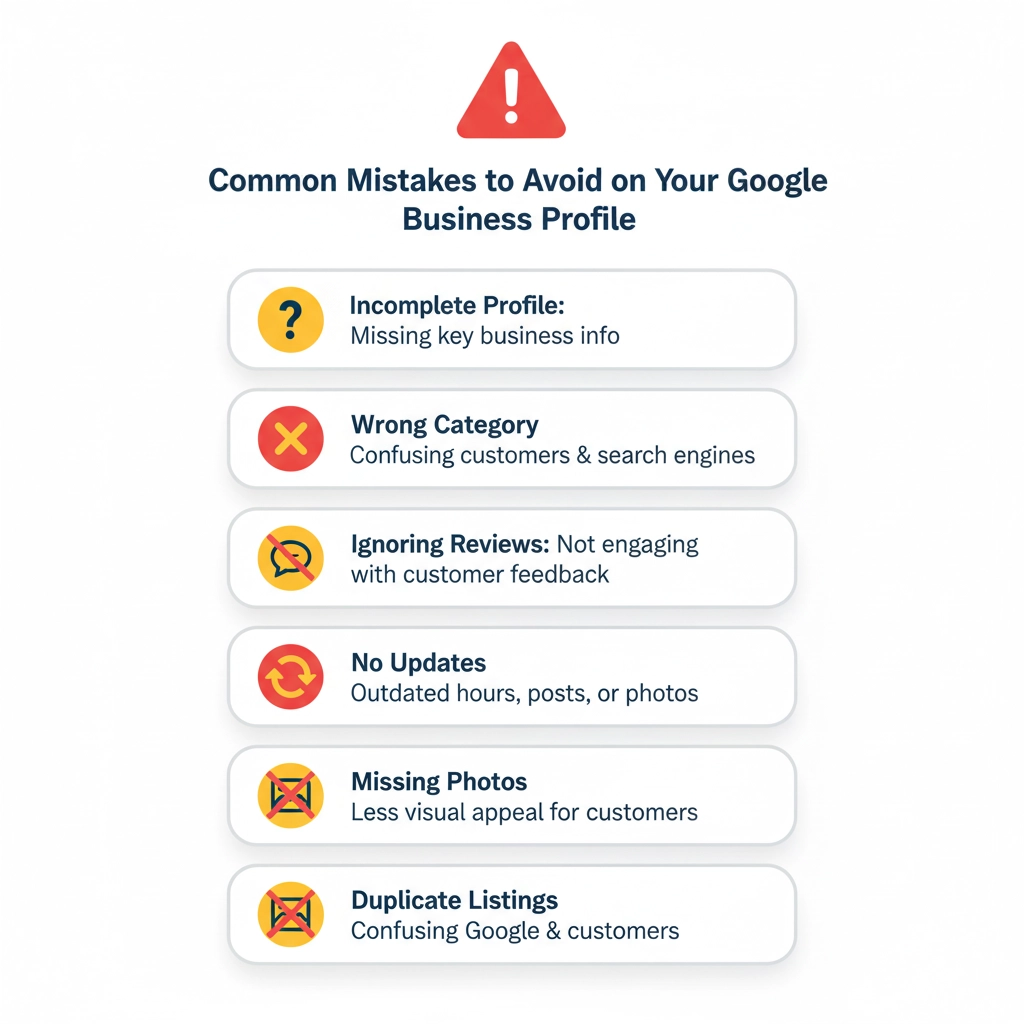
Common Mistakes to Avoid –
Even a small error can reduce your visibility. Watch out for these common mistakes:
- Leaving your profile incomplete or outdated
- Ignoring customer reviews or negative feedback
- Using generic or low-quality photos
- Selecting incorrect categories
- Overstuffing keywords in your description
- Not verifying your business
Remember, accuracy and activity both matter — the more complete and active your profile, the more Google rewards you with visibility.
How to Manage and Track Performance -
Once your profile is live, the work doesn’t end there.
Regularly update your hours, reply to questions, and keep your content fresh.
Check the “Insights” tab to track:
- How many people viewed your profile
- How they found you (search or maps)
- What actions they took (calls, clicks, messages)
- Which photos performed best
These metrics reveal what’s working — and what’s not — so you can refine your strategy for better results.
Why Businesses Choose Experts to Handle Their Google Business Profile -
While anyone can set up a Google Business Profile, not everyone knows how to strategically optimize it for visibility and conversions.
That’s where working with an experienced marketing agency like Brandlogg makes all the difference.
At Brandlogg, we help businesses:
- Set up and verify their Google Business Profile correctly
- Optimize listings with keyword-rich content, photos, and updates
- Manage and respond to reviews professionally
- Track performance and continuously enhance visibility
Our team ensures your business doesn’t just appear on Google — it stands out and attracts real customers.
Final Thought:
To wrap this up i can say that your Google Business Profile is not just a smart move infact it is one of the most effective yet underrated tools to strengthen your local presence online.
A Google Business Profile can do a lot for you: it gives you authority, it connects you to the potential clients, it makes you visible when and where it is really necessary — in local searches.
So whether your goal is to increase foot traffic, improve online visibility or establish a more trustworthy digital presence, a fully optimized Google Business Profile can deliver long-term benefits.
And the best part? It won’t cost you a thing.
From small local shops to growing brands, businesses that take the time to properly set up and optimize their profile are the ones that stand out — and get chosen.
Because in today’s digital-first world, being easy to find isn’t just convenient — it’s crucial.
If you’re ready to take your visibility to the next level, consider investing in professional Local SEO services to help you get the most out of your Google presence.